If you’ve ever dreamed of basking in the enchanting world of Eorzea while sitting comfortably at your Mac, you’re in for a treat. Final Fantasy XIV (FFXIV) is not just a game: it’s a journey filled with quests, dragons, and late-night dungeon runs that may or may not involve crying over unexpected boss mechanics. But here’s the kicker, getting it running smoothly on macOS can feel like deciphering a particularly tricky quest. Fear not, though. Whether you’re a keen adventurer or a casual player, this guide has got your back. Let’s dive deep and uncover how to play FFXIV on Mac without losing your sanity, or your hard-earned gil.
System Requirements for Mac
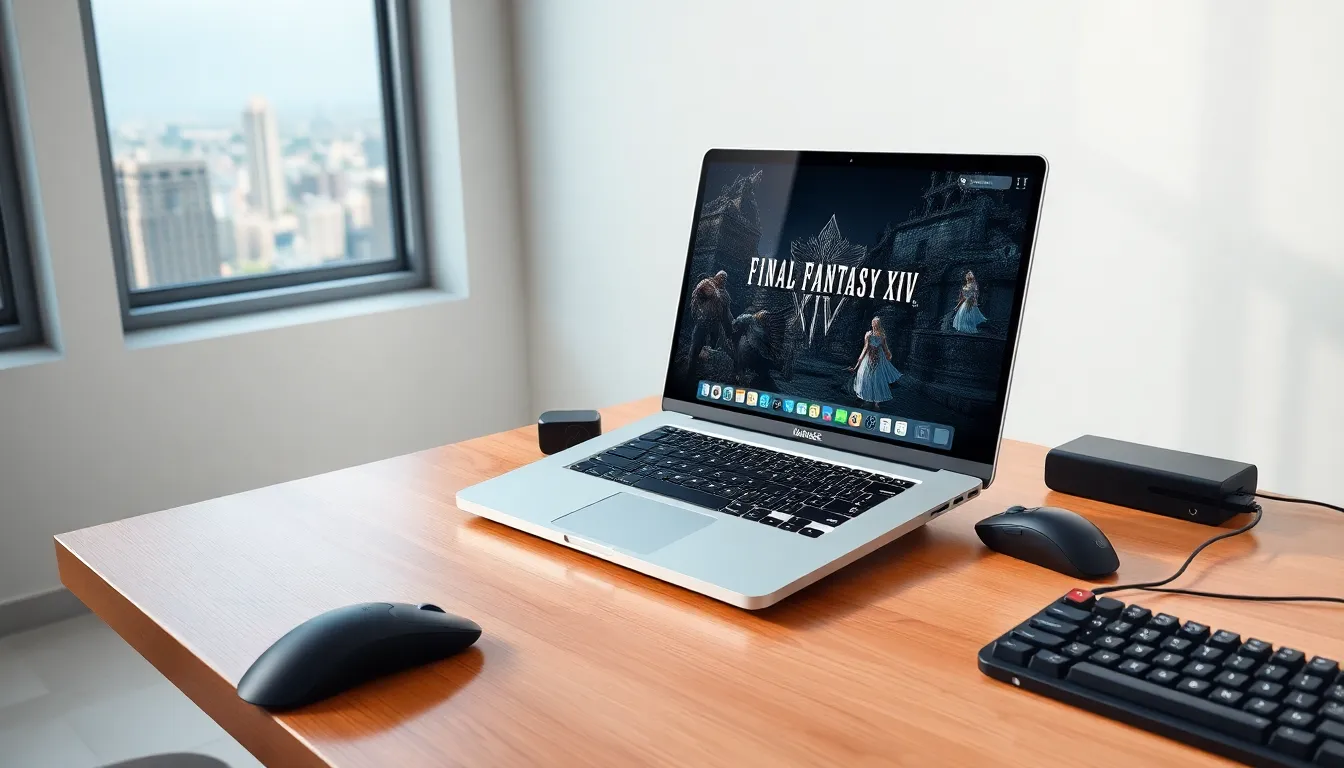
Before diving into the magical realm of Final Fantasy XIV, it’s crucial to make sure your Mac is up for the challenge. Here’s what players need to keep in mind:
Minimum Requirements
- OS: macOS 10.14 (Mojave) or later
- Processor: Intel Core i5 or better
- Memory: 4 GB of RAM
- Graphics: NVIDIA GeForce GTX 660 or AMD Radeon HD 7950 or better
- Storage: 80 GB available space
Recommended Requirements
For the smoothest experience, it’s advisable to aim higher:
- OS: macOS 10.15 (Catalina) or later
- Processor: Intel Core i7 or better
- Memory: 8 GB of RAM or more
- Graphics: NVIDIA GeForce GTX 970 or AMD Radeon RX 400 series or better
- Storage: SSD with ample free space
Having the right specs is crucial, especially in a game where graphic fidelity and performance can spell the difference between a victorious raid and a swift trip back to the nearest respawn point.
Installing Final Fantasy XIV on Mac
Installing FFXIV may not be as straightforward as downloading an app from the App Store, but it’s far from rocket science. Here’s a step-by-step breakdown:
- Visit the Official Site: Start by heading over to the official Final Fantasy XIV website to download the game client.
- Download the Mac Client: Look for the Mac version of the download link. It may appear slightly hidden, but a little digging goes a long way.
- Install the Client: Once downloaded, locate the .dmg file in your Downloads folder and double-click it. This will open a window: drag the game icon to your Applications folder.
- Account Setup: If you’re new to FFXIV, you’ll need to create an account, which is typically painless. Sign up, choose your subscription plan, and make sure to jot down your login details.
- Launch the Game: Now, find the FFXIV icon in your Applications folder and launch it. The game will handle the rest by downloading additional files needed for the experience.
And voilà. You’re on your way to fighting FATEs and saving the realm.
Optimizing Gameplay Experience
Nobody wants to be that player who lags at a critical moment in a raid. To ensure smooth gameplay, optimizations are key:
Adjust In-Game Settings
- Lower graphic quality settings such as shadows and textures if you experience performance issues. This can significantly boost frame rates.
- Turn off unnecessary features like V-Sync, which can limit performance.
Monitor Running Processes
Make sure to close unnecessary applications in the background. Every little bit of RAM helps when entering that epic battle.
Use a Wired Connection
While Wi-Fi might suffice, switching to a wired connection can reduce latency issues and packet loss. This is crucial for competitive gameplay, especially in dungeons or PvP scenarios.
Upgrade Hardware
Consider upgrading to an SSD if you haven’t already. It not only improves load times but enhances overall performance.
Troubleshooting Common Issues
Even the bravest adventurers face trouble occasionally. Here are common issues players encounter while running FFXIV on Mac, along with possible fixes:
Game Crashes on Startup
If FFXIV crashes before you even enter the world:
- Verify game files through the launcher, this might catch corrupt files.
- Ensure your Mac’s OS is up to date.
Lag and Performance Issues
If you find the game lagging:
- Lower graphics settings (as suggested earlier).
- Check your internet connection, fluctuations can significantly affect gameplay.
Missing Game Assets
Should characters or textures appear glitchy:
- Reinstalling might fix the issue, but first, verify game assets in the launcher.
Always feel free to explore community forums for additional support. The FFXIV community is incredibly responsive and supportive.
Using Boot Camp vs. Native Client
Deciding between Boot Camp and the native Mac client can impact gameplay. Let’s break down the pros and cons:
Boot Camp
Pros:
- Often better performance since it runs Windows natively.
- Greater compatibility with mods and future updates.
Cons:
- Requires partitioning your hard drive.
- More complex setup.
Native Client
Pros:
- Easier installation and updates.
- No need for partitioning, ideal for casual players.
Cons:
- Slightly lower performance compared to Boot Camp.
- Limited access to some features that may work better on Windows.
Players should consider their needs before making a decision. If they’re looking for a more laid-back experience, the native client may suffice. For more serious gamers, Boot Camp may be worth the extra effort.
Future of Final Fantasy XIV on Mac
The future of FFXIV on Mac shines bright, with Square Enix continuously updating the game to enhance performance and compatibility. Future expansions are anticipated to offer even more content to delight both new and veteran players. As macOS evolves, so does the potential for improved gameplay experiences. Players can expect to see better graphics and possibly support for Apple Silicon chips.
As the gaming community grows, developers are leaning into cross-platform capabilities, allowing users to play together seamlessly, regardless of their preferred devices. Keeping up with official announcements is essential to stay informed about new features and enhancements.