Table of Contents
ToggleThe rendering device lost error in Overwatch 2 is one of the most frustrating crashes a player can encounter. You’re in the middle of a ranked match, pushing the payload, and suddenly your screen goes black, game closed, SR lost, and a cryptic error message staring you in the face. This error tells you that Overwatch 2 has lost communication with your graphics processing unit (GPU), but it doesn’t explain why or how to fix it. The rendering device lost error can stem from outdated drivers, hardware issues, software conflicts, or DirectX misconfigurations. The good news? Most causes are fixable without replacing your entire rig. This guide walks you through every troubleshooting step, from the quick wins to advanced solutions, so you can get back to competitive play without the crashes.
Key Takeaways
- The rendering device lost error in Overwatch 2 occurs when the game engine loses communication with your GPU, most commonly due to outdated drivers, overheating, DirectX misconfigurations, or background applications competing for GPU resources.
- Update your graphics drivers monthly through GeForce Experience, Radeon Software, or Intel’s driver page, and perform a clean install to remove old driver code—outdated drivers are the #1 cause of this rendering device lost error.
- Start troubleshooting with quick fixes: restart your PC completely, verify game files through Battle.net, and lower all graphics settings to minimum to identify whether the issue is software or hardware-related.
- Monitor your GPU temperature during gameplay using GPU-Z or HWiNFO; if temperatures exceed 85°C, clean dust from your heatsink, improve case airflow, and disable GPU overclocking to prevent thermal throttling.
- Close unnecessary background applications like Discord, OBS, browsers, and RGB lighting software before launching Overwatch 2, as they fragment GPU resources and contribute to device communication failures.
- If crashes persist across all low settings, visual artifacts appear, or Furmark stress tests fail, your GPU hardware may be degraded and require professional replacement or manufacturer warranty service.
What Is The Rendering Device Lost Error?
Understanding The Error Message
When Overwatch 2 throws the rendering device lost error, it means the game engine can no longer communicate with your GPU. Think of it like your monitor suddenly unplugging while you’re playing, the game doesn’t know how to draw the next frame, so it crashes. The error appears in different forms depending on your setup: some players see a black screen and immediate crash-to-desktop, others get a dialog box stating “Device Lost” before the game closes. On Windows, the error might be paired with a DirectX error code, though the message is usually vague enough to make it seem like a lottery of potential causes.
This error is not the same as a driver timeout (which usually gives a “driver stopped responding” message) or a VRAM overflow crash. The rendering device lost error is specifically about GPU-driver-game communication breaking down.
Common Symptoms And When It Occurs
Most players report the rendering device lost error happening under specific conditions:
- During intense battles: Framerate drops to unplayable levels, then crash. This often points to GPU overheating or insufficient cooling.
- After loading into a map: Crash-to-desktop within 30 seconds of spawning. Usually driver or DirectX-related.
- At random intervals: No pattern, happens once every few hours or every few matches. Often indicates GPU hardware degradation.
- When alt-tabbing or alt-tabbing back: The GPU loses context when you switch windows. DirectX or driver-level issue.
- Only on certain maps or game modes: Suggests a setting or texture-loading conflict with specific assets.
The error is most common on PC (Windows and some Linux setups via Proton), with rare reports on console. Overwatch 2 is available on PS5, PS4, Xbox Series X
|
S, Xbox One, Nintendo Switch, and PC via Battle.net, but GPU-level rendering errors are almost exclusive to PC since console hardware is standardized.
Your symptoms matter because they narrow down the cause. A crash every 30 seconds on map load is different from a crash after 2 hours of stable gameplay.
Why Does This Error Happen?
Outdated Or Corrupted Graphics Drivers
Your GPU driver is the software bridge between your graphics card and Overwatch 2. If that driver is outdated, corrupted, or incompatible with the latest game patch, the rendering pipeline breaks. Blizzard frequently updates Overwatch 2, and NVIDIA, AMD, and Intel release driver patches monthly. If your driver is months old, you’re running outdated code that may not handle the game’s current DirectX calls.
Corrupted drivers are less common but more destructive. They can happen after a failed driver update, a crash during installation, or system instability. A corrupted driver looks like it’s installed correctly, but the underlying files are broken.
GPU Hardware Issues And Overheating
Your graphics card has thermal limits. When it overheats (usually above 85°C), it throttles performance to cool down. If it hits critical temps (90°C+), the driver intentionally crashes to prevent hardware damage. This manifests as the rendering device lost error.
Overheating happens when:
- Your GPU cooler is clogged with dust.
- Case airflow is poor (cramped builds, no case fans).
- Thermal paste on the GPU has degraded.
- You’re running an older card that was never efficient.
- Room temperature is hot (summer gaming in non-climate-controlled spaces).
Hardware failures, though rarer, also cause this error. A failing GPU memory (VRAM) module or a degraded power delivery circuit can cause the driver to lose synchronization.
DirectX And Game Settings Conflicts
Overwatch 2 uses DirectX 11 and DirectX 12, depending on your settings. If your system’s DirectX installation is corrupted or outdated, the game can’t initialize properly, leading to crashes mid-match. Some players have DirectX 11 set as the default while the game expects DirectX 12 features.
In-game graphics settings can also conflict. Setting resolution, refresh rate, or shader quality beyond what your GPU can handle in a sustained way causes the device to lose sync. Enabling ray tracing on older cards, pushing render scale to 150%, or maxing out texture filtering on a 4GB VRAM card can trigger the error within minutes of loading.
Overlapping Background Applications
Apps running in the background, especially other GPU-intensive programs, can fight Overwatch 2 for GPU resources. Discord streaming, OBS, Chrome with a dozen tabs, background Windows updates, or malware all compete for GPU bandwidth. When too many things tap the GPU simultaneously, the driver loses coherence and crashes.
RGB lighting software, streaming apps, and even some antivirus tools hook into your GPU. A poorly written background app can corrupt the GPU’s command queue, causing the rendering device lost error.
Quick Fixes To Try First
Restart Your Game And System
Before diving into advanced troubleshooting, try the simplest fix: a full system restart. Close Overwatch 2, then shut down your PC completely (not sleep mode). Wait 10 seconds, then power back on. This clears temporary memory corruption, resets GPU state, and ensures all drivers are fully loaded.
If you only restart the game without restarting Windows, residual GPU context from the previous crash may linger, causing immediate re-crashes.
Verify Game Files Through Battle.net
Corrupted game files can trigger rendering errors. Open Battle.net, navigate to Overwatch 2, click the Options menu, and select Scan and Repair. This checks every game file against Blizzard’s server and redownloads anything broken. The process takes 5-15 minutes depending on your internet.
This is worth doing even if you suspect a driver issue, because a missing or corrupted shader file looks identical to a GPU crash.
Lower Your Graphics Settings
Start by dropping your settings to minimum across the board:
- Resolution: 1920×1080 (or lower)
- Graphics Quality: Low
- Render Scale: 100% (not 125% or 150%)
- V-Sync: Off
- Ray Tracing: Off
- Frame Rate Limit: 60 FPS (or monitor refresh rate)
Launch the game and play for 15 minutes. If the error doesn’t occur, incrementally raise settings one at a time and test again. This identifies which setting triggers instability. If the error persists even on minimum settings, move to advanced troubleshooting.
Lowered settings also reduce GPU load, which helps if you’re dealing with overheating. You’ll spot this quickly: if crashes only happen after 45 minutes of play (once the GPU heats up), but lowering graphics extends stable playtime to 2+ hours, overheating is your culprit.
Advanced Troubleshooting Solutions
Update Your Graphics Drivers
Outdated drivers are the #1 cause of rendering device lost errors in Overwatch 2. Here’s how to update for each major GPU manufacturer:
NVIDIA (GeForce Experience)
- Open GeForce Experience.
- Click the Drivers tab.
- If an update is available, click Download.
- During installation, choose Clean Install to remove old driver code.
- Restart your PC.
AMD (Radeon Software)
- Open Radeon Software.
- Click the Updates tab.
- Click Check for Updates.
- Install any available driver.
- Restart your PC.
Intel (Arc GPU)
- Visit the Intel Arc GPU drivers page.
- Download the latest driver for your GPU model and OS.
- Run the installer and select Clean Install.
- Restart your PC.
Many players overlook this step, assuming drivers auto-update. They don’t. Check monthly.
Roll Back Or Switch GPU Drivers
Sometimes a new driver causes the rendering device lost error. If crashes started immediately after a driver update, rolling back to the previous version often fixes it.
NVIDIA Rollback
- Open Control Panel > Programs and Features.
- Find NVIDIA Graphics Driver.
- Click Uninstall.
- Download the previous driver version from NVIDIA’s driver archive.
- Install and restart.
AMD Rollback
- Open Settings > System > Display > Advanced Display Settings.
- Scroll down and click Display adapter properties.
- Open Radeon Software and check the driver version.
- AMD’s driver page and download the previous release.
- Uninstall current, install previous, restart.
If rolling back works, hold off on updating that driver version until AMD or NVIDIA releases a hotfix.
Disable GPU Overclocking
If you’ve overclocked your GPU using tools like MSI Afterburner or EVGA Precision, disable it immediately. Overclocking increases power draw and heat, both of which destabilize the GPU and cause rendering errors.
To disable overclocking:
- Open your overclocking tool (Afterburner, Precision, etc.).
- Click the Reset button to return GPU clock, memory clock, and power limit to stock settings.
- Close the tool.
- Restart Overwatch 2 and test for crashes.
If crashes stop, your GPU is either degraded (losing efficiency at stock clocks) or the overclocking itself was unstable. Leave it at stock and consider undervolting instead, a safer way to squeeze performance without extra heat.
Reinstall DirectX And Visual C++ Redistributables
Overwatch 2 depends on DirectX and Visual C++ runtimes. If these are corrupted, the game crashes. Reinstall them:
DirectX
- Microsoft’s DirectX End-User Runtime.
- Download the DirectX End-User Runtime Web Installer.
- Run it and follow prompts.
- Restart your PC.
Visual C++ Redistributables
- Microsoft’s Visual C++ Download Page.
- Download the latest version (both x86 and x64 if on 64-bit Windows).
- Install each one.
- Restart your PC.
This step often gets skipped because it seems too basic. Don’t skip it. Corrupted runtimes cause silent GPU initialization failures that manifest as rendering device lost.
Fixing Hardware-Related Issues
Clean Your GPU And Improve Airflow
Dust is the silent killer of GPU stability. A dust-clogged heatsink forces the GPU to retain heat, triggering thermal throttling and crashes. To clean your GPU:
- Shut down and unplug your PC.
- Ground yourself by touching a metal part of the case to avoid static discharge.
- Open your case and locate your graphics card.
- Use compressed air to blow dust out of the heatsink fins. Short bursts, holding the fan stationary so it doesn’t spin freely (spinning can damage bearings).
- Wipe the card’s surface gently with a dry, lint-free cloth.
- Improve case airflow by ensuring intake and exhaust fans are clear, and that the case isn’t against a wall or in a closed space.
If your case has poor airflow, consider adding fans. A single additional intake or exhaust fan costs $15-30 and can drop GPU temps by 5-10°C.
Monitor GPU Temperature During Gameplay
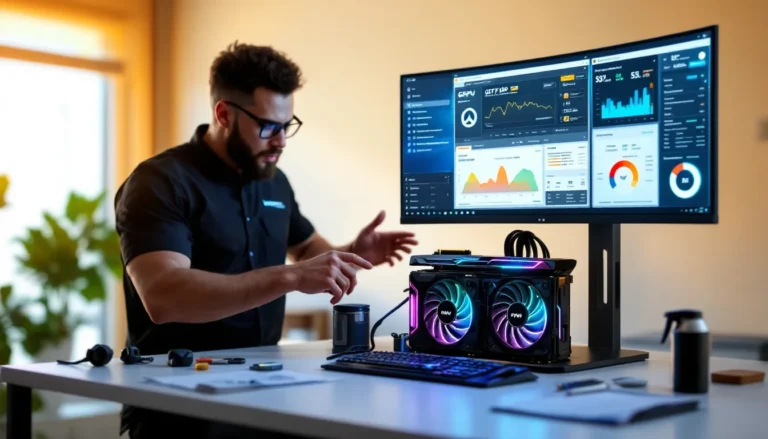
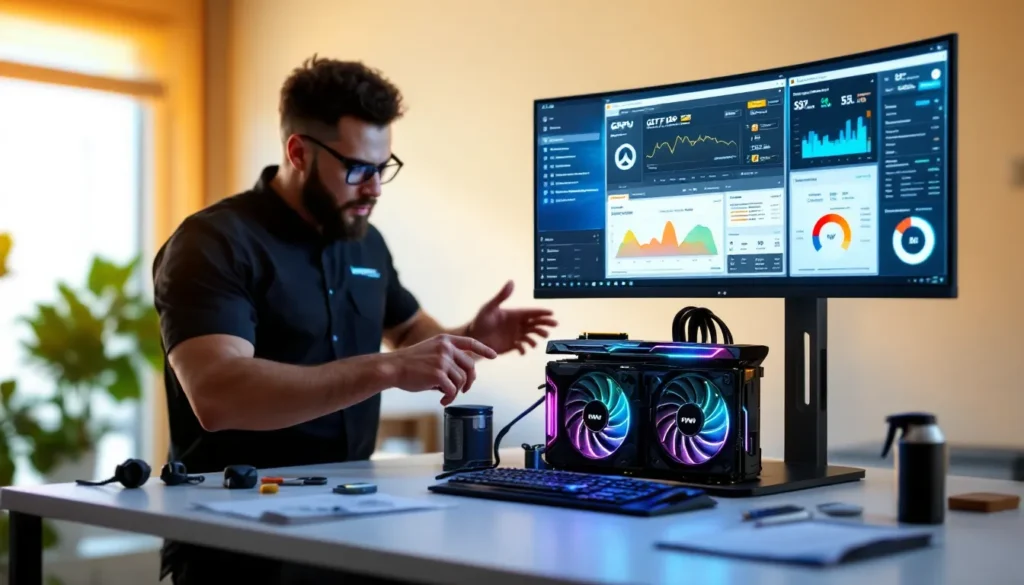
Download and run GPU-Z or HWiNFO during Overwatch 2 to monitor real-time GPU temperature and clock speeds. Play for 30 minutes and note the peak temperature.
- Below 75°C: Safe. Crashes aren’t due to heat.
- 75-85°C: Acceptable but warm. Check case airflow and dust.
- 85-90°C: Hot. This is where throttling kicks in. Crashes likely start here.
- Above 90°C: Critical. GPU is thermally limiting itself. Clean immediately.
Also watch for clock speed drops mid-match. If your GPU drops from 2000 MHz to 1200 MHz during Overwatch 2, it’s thermal throttling. This causes frame stutters and can trigger rendering device lost.
Test Your GPU For Failures
If temps are normal but crashes persist, test your GPU hardware directly. Download MemTest or Furmark (a stress test for GPU VRAM).
Furmark Test
- Download and run Furmark.
- Set it to stress test your GPU (usually a full-screen burn test).
- Run for 10-15 minutes.
- Watch for artifacts (visual glitches), crashes, or the rendering device lost error.
If your GPU crashes during Furmark, the hardware is failing and likely needs replacement. If it passes Furmark but crashes in Overwatch 2, the issue is software (drivers, DirectX, settings) not hardware.
Hardware failures are expensive but definitive. If you suspect a bad GPU, contact the manufacturer (NVIDIA, AMD, Intel) within warranty to claim a replacement.
Optimizing In-Game Settings For Stability
Adjust DirectX Version Settings
Overwatch 2 allows you to choose between DirectX 11 and DirectX 12. DirectX 12 is newer and potentially faster, but it’s also more demanding and less stable on some systems.
To switch:
- Launch Overwatch 2.
- Go to Options > Graphics.
- Scroll to Advanced settings.
- Find Graphics API and toggle between DirectX 11 and DirectX 12.
- Restart the game.
If crashes occur on DirectX 12, switch to DirectX 11. DirectX 11 is more stable on older or budget GPUs, and the performance difference is minimal in Overwatch 2.
Disable Hardware Acceleration Features
Some hardware acceleration features, like ray tracing, DLSS/FSR, or advanced lighting, can be unstable on certain GPU models or driver versions.
Disable these one at a time and test:
- Ray Tracing: Off
- DLSS (NVIDIA): Off or set to “Quality” (not “Performance”)
- FidelityFX Super Resolution (AMD): Off or “Quality”
- Motion Blur: Off
- Dynamic Resolution: Off (cap your resolution at 1920×1080)
These settings provide visual polish but aren’t essential for competitive play. Turning them off reduces GPU load and dramatically improves stability.
Close Unnecessary Background Applications
Before launching Overwatch 2, close or minimize:
- Discord (especially with streaming enabled)
- OBS, Streamlabs, or other streaming software
- Chrome, Firefox, or other browsers (even one tab eats VRAM)
- RGB lighting control software
- Antivirus real-time scanning (disable temporarily during play)
- Windows Update service (pause via Settings > Update & Security)
- OneDrive, Google Drive, or cloud backup syncing
Each background app taps your GPU or system memory. In aggregate, they fragment GPU resources and cause the rendering device lost error. Use a task manager (Ctrl+Shift+Esc) to see what’s running, then kill non-essential processes before firing up Overwatch 2.
For competitive players, create a custom power plan that disables background tasks during gameplay. Windows provides this via Settings > System > Focus Assist (set to “Priority Only” before ranked).
When To Seek Professional Help
Signs Your GPU May Be Failing
If you’ve tried every fix above and crashes persist, your GPU may be failing. Red flags include:
- Crashes happen immediately on all low settings: No configuration works.
- Visual artifacts (colored pixels, lines, shapes) appear on screen before crashes.
- Crashes spread to other games: Not exclusive to Overwatch 2: happens in other titles.
- GPU temperature spikes unexpectedly: Jumps 20°C+ without explanation.
- Furmark crashes within minutes: Hardware stress test fails reliably.
- Post-warranty with heavy use: Older cards (5+ years) naturally degrade.
GPU failure is permanent. Replacement is the only fix. If your card is under warranty (usually 2-3 years from purchase), contact the manufacturer (EVGA, Asus, MSI, etc., for third-party cards: or NVIDIA/AMD for founders editions).
Contacting Blizzard Support
If you’ve confirmed the issue isn’t your hardware or drivers, contact Blizzard Support. Battle.net Support and file a ticket under Overwatch 2 > Technical Support > Graphics or Performance Issue.
Provide:
- Your GPU model and driver version
- Windows OS version
- Exact error message (“rendering device lost” and any error codes)
- Steps you’ve already taken
- Whether it crashes on minimum or all settings
- DXDiag report (search “dxdiag” in Windows, export full report)
Blizzard’s support team can identify if the issue is a game-side bug (rare) or confirm it’s your setup (likely). In rare cases where a patch caused rendering issues across multiple systems, Blizzard releases a hotfix within days. Knowledge of how rendering devices communicate with Overwatch 2 helps support narrow down the cause.
Meanwhile, according to PC Gamer’s hardware guides, many rendering errors resolve once your setup matches modern gaming standards, a stable driver, clean hardware, and DirectX updates. Research similar issues on community forums: often a user has documented the exact solution for your GPU and OS combination.
For detailed technical analysis of GPU performance in modern games, DSOGaming offers comprehensive optimization breakdowns and driver comparisons that can contextualize your specific card’s stability. And for Overwatch on Mac, rendering device lost errors are exceedingly rare since macOS users face different graphics architecture entirely, but troubleshooting logic remains similar.
Conclusion
The rendering device lost error is frustrating, but it’s rarely a death sentence. The vast majority of cases stem from outdated drivers, overheating, background apps, or corrupted DirectX, all fixable without new hardware.
Start with quick wins: restart your PC, verify game files, lower graphics settings. If that doesn’t work, update drivers and check GPU temps. Only after exhausting software fixes should you consider hardware replacement.
The key is methodical troubleshooting. Change one variable at a time, test for 20+ minutes, and note whether crashes stop or persist. This narrows the cause and saves hours of trial-and-error. Keep your drivers updated monthly, monitor GPU temperatures during intense gaming sessions, and close unnecessary background apps before competitive play.
Once you fix this error, you’ll get back to what matters: climbing ranks, landing headshots, and enjoying Overwatch 2 without unexpected crashes. Good luck out there.